BENTVPRO / INSTALLATION
INSTALLATION
ANDROID+
How to Set Up IPTV on Android with IBO Player Pro
Step 1: Download and install the app
Open the Google Play Store on your Android device (or use the Downloader app on Android TV/FireStick) and search for IBO Player Pro.
Alternatively, download the official APK directly from the portal:
[https://iboproapp.com/]Click Install and launch the application once complete.
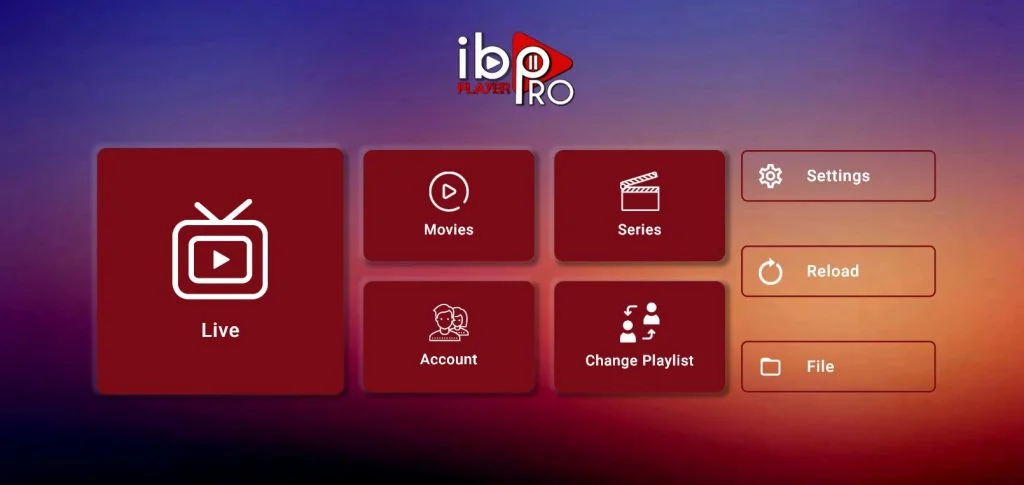
Step 2: Note your Device ID and Device KeyWhen you open IBO Player Pro for the first time, your screen will display:
Device ID (MAC Address format, e.g.,
a1:b2:c3:d4:e5:f6)Device Key (a 6-digit PIN/key)
Write down or take a photo of both values.
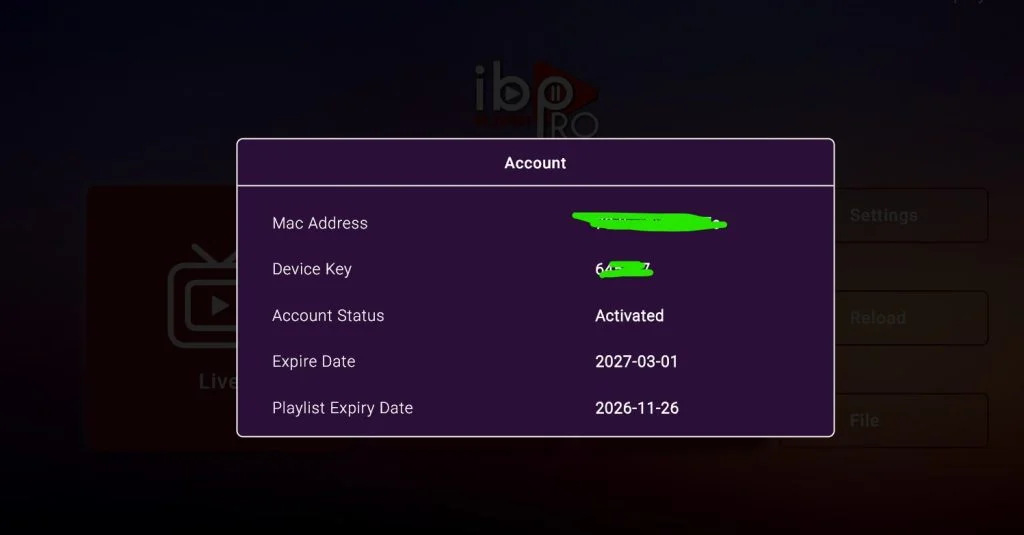
Step 3: Connect your playlist online
On your phone or computer, open a web browser and go to the official upload portal:
https://iboproapp.com/manage-playlists/Enter your Device ID and Device Key, then click Login.
Step 4: Add your IPTV subscription details
Inside the management dashboard, click Add XC Playlist (for Xtream Codes credentials) or Add Playlist (for M3U link).
Enter the details:
Playlist Name: Enter any name (e.g.,
My IPTV)Username / Password / Server URL: Enter the login credentials or M3U URL provided by your subscription provider.
Click Save.
Step 5: Reload the app on your Android device
Return to your TV or Android device.
On the main screen of IBO Player Pro, click the Reload (refresh) button to sync your uploaded playlist.
Step 6: Access Live Channels
Once synced, the main menu tiles will appear: Live TV, Movies, and Series.
Select the Live TV tile to open your channel directory.
Step 7: Choose your category and start streaming
Select your preferred channel category/group (e.g., Sports, News, Entertainment).
Click on a channel to start playback in the preview window, then click it again (or press OK/Enter) to switch to full-screen mode.
WINDOWS / MAC+
How to Set Up IPTV on Windows with IBO Player Pro
Step 1: Download and install the app on Windows
Download the Windows Desktop
.exesetup file directly via this link:[https://rb.gy/8beuu](or search for IBO Player Pro in the Microsoft Store).PNGRun the downloaded setup file and follow the on-screen prompts to complete installation, then open the app.
Step 2: Note your Device ID and Device Key
Once the app launches, the home screen (or the Account Info section in the top-right corner) will display your unique credentials:
Device ID / MAC Address (e.g.,
a1:b2:c3:d4:e5:f6)Device Key (a 6-digit PIN)
Keep these two codes handy.
Step 3: Connect to the IBO Player Pro management portal
Open your web browser and go to the official playlist portal:
[https://iboproapp.com/manage-playlists/](https://iboproapp.com/manage-playlists/)Enter your Device ID and Device Key, then click Login.
Step 4: Add your IPTV subscription credentials
Inside the dashboard, click Add XC Playlist (for Xtream Codes API) or Add Playlist (for M3U URLs).
Fill in your subscription information provided after purchase:
Playlist Name: Enter any label (e.g.,
My IPTV).Username, Password, and Server URL (or your full M3U Link).
Click Save / Submit.
Step 5: Reload and sync the Windows app
Switch back to the IBO Player Pro application on your PC.
Click the Reload button at the top (or restart the app) to sync and load your content.
Step 6: Open the Live TV directory
Click on the Live TV icon on the dashboard to access all available live television channels.
Step 7: Choose your channel and switch to full screen
Select your desired category or country playlist from the left-side panel.
Click on any channel to start playing in the preview box, then double-click the player window (or press the full-screen button) to switch to full-screen mode.
FIRETV STICK+
How to Set Up IPTV on Fire TV Stick with IBO Player Pro
Step 1: Install the “Downloader” app on Fire TV Stick
From your Fire TV home screen, navigate to Find > Search and type Downloader.
Select the orange Downloader app and click Download (or Get) to install it.
Step 2: Enable installation permissions for Downloader
Go to Fire TV Settings (gear icon) > My Fire TV > Developer Options.
If Developer Options is not visible, go to About, highlight your Fire TV Stick name, and click the remote’s center button 7 times until you see the message “No need, you are already a developer.”
Return to Developer Options, select Install Unknown Apps (or Apps from Unknown Sources), and toggle Downloader to ON.
Step 3: Download and install IBO Player Pro
Open the Downloader app and grant storage permissions when prompted.
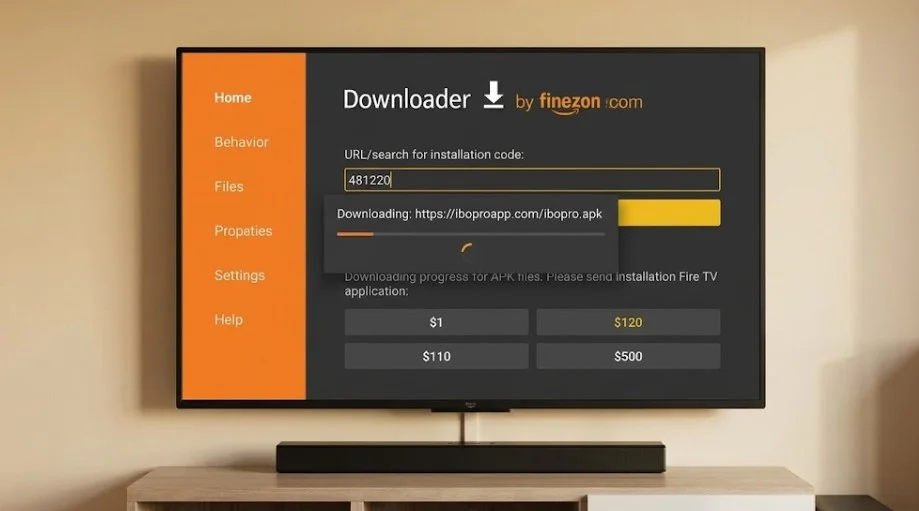
In the URL/search bar, enter the Downloader numeric code:
481220(or enter[https://iboproapp.com/ibopro.apk]=Click Go. The download will begin automatically.Once downloaded, click Install, then click Open (or Done and delete the installer file to save storage space).
Step 4: Retrieve your Device ID and Device Key
Open IBO Player Pro from your apps library.
The welcome screen will display:
Device ID (MAC address format, e.g.,
aa:bb:cc:11:22:33)Device Key (a 6-digit PIN code)
Keep these two codes visible on your screen.
Step 5: Upload your playlist credentials online
Using a phone, tablet, or PC browser, open the official playlist portal:
[https://iboproapp.com/manage-playlists/]Enter your Device ID and Device Key, then click Login.
Inside the dashboard, select Add XC Playlist (for Xtream Codes API) or Add Playlist (for an M3U URL):
Playlist Name: Enter any label (e.g.,
Firestick IPTV).Username, Password, and Server URL (or paste your M3U link).
Click Save.
Step 6: Sync the app on your Fire TV Stick
Return to your Fire TV Stick screen.
Click the Reload button inside IBO Player Pro to sync your playlist channels and categories.
Step 7: Start streaming Live TV
Click the Live TV tile from the main menu.
Browse your preferred category or country folder, select a channel to preview, and press the Select/OK button on your remote to view in full screen.
MAC / IOS+
How to Set Up IPTV on Apple/iOS with IPTV Smarters Player
Step 1: Start by downloading the IPTV Smarters app from the Apple App Store via this URL: https://apps.apple.com/in/app/smarters-player-lite/id1628995509
Or you can download it directly from the App Store.
Step 2: Open the app once downloaded and enter your login credentials.
Step 3: Enter the login details we provided after you subscribed and tap “Add User.”
Step 4: Wait a few seconds.
Step 5: Now click on the “Live TV” icon as shown in the image.
Step 6: Now, select the channel category (group) you want to watch and proceed to the next section.
Step 7: Click on the channel name, then double-click on the small preview screen to switch to full-screen mode for the final step.
Smart TV+
How to Set Up IPTV on Samsung & LG Smart TV with IBO Player Pro / BOB Player
For Samsung Smart TV
Step 1: Press the Smart Hub (or Home) button on your Samsung remote control.
Step 2: Open Apps, search for IBO Player Pro (or BOB Player), and install the app.
Step 3: Open the app and locate your Device ID (MAC Address) and Device Key on the screen.
Step 4: Using a phone or computer browser, go to the playlist upload portal (
[https://iboplayer.com/], log in with your Device ID and Key, and link your IPTV subscription details (Xtream Codes API: Username, Password, and Server URL).Step 5: Return to your TV, click Reload, and access your channels under Live TV.
For LG Smart TV
Step 1: Press the Home button on your LG Magic Remote and launch the LG Content Store (or Apps).
Step 2: In the search bar, look for IBO Player Pro (or BOB Player) and click Install.
Step 3: Launch the application to reveal your unique Device ID and Device Key.
Step 4: Open a browser on your mobile or PC, visit the portal (
[https://iboplayer.com/](https://iboplayer.com/)or[https://bobplayer.com/](https://bobplayer.com/)), enter your credentials, and submit your subscription details (Server URL, Username, and Password).Step 5: Reload the app on your LG TV to start watching.
Important License Notice:
IBO Player Pro and BOB Player are premium media players, not free applications. Both apps include a 7-day free trial. Once the trial ends, a one-time lifetime activation fee (around €8 to €10) is required directly on their official website (
[https://iboplayer.com/](https://iboplayer.com/)) to keep using the player.